Industrial Display Black Screen: 7 Causes, Fast Fix & How to Solve It Without Replacement
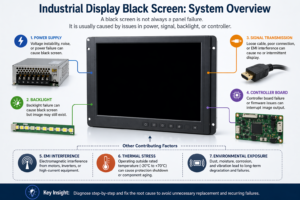
Quick Answer An industrial display black screen is typically caused by: Power supply instability LED backlight …
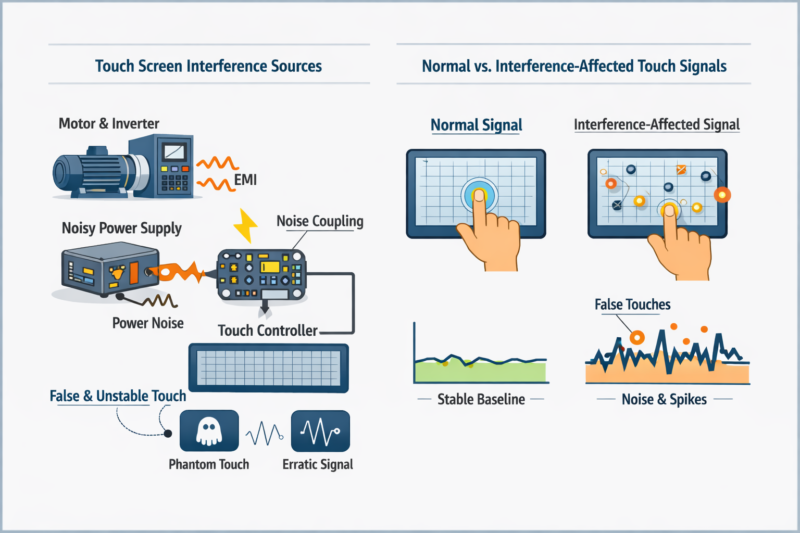
A touch screen that clicks by itself is not always a bad touch panel.
In industrial equipment, touch screen interference often appears after final assembly. The same touch panel may work normally on a test bench, but show ghost touch, jumping points, missed touch, or unstable response after it is installed into the final machine.
If the touch works outside the machine but fails after installation, do not replace the touch panel first. Check power, grounding, cable routing, metal enclosure contact, and nearby electrical noise first.
For complete display assemblies used in EV chargers, kiosks, control panels, and HMI equipment, the full structure of industrial display monitors and touch monitors should be reviewed together with the final machine design.
Touch screen interference is usually a noise, grounding, or integration problem. It may appear as ghost touch, random touch, jumping coordinates, missed touch, or unstable response.
To check touch screen interference, use this order:
If the problem follows the machine, cable route, power supply, or enclosure instead of the touch panel, the root cause is usually interference or integration design.
Use this table before changing parts.
| Test Result | Most Likely Cause | What to Check Next |
|---|---|---|
| Works on bench but fails inside the machine | System integration issue | Grounding, enclosure contact, cable routing, power noise |
| Ghost touch appears when motor, charger, or inverter starts | EMI coupling | Cable shielding, grounding, EMI filter, cable distance |
| Touch becomes stable with lab power supply | Power noise | DC ripple, adapter quality, power filtering |
| Problem changes when cable position changes | Cable coupling | Touch cable length, shielding, route near high-current cables |
| Fails only after final enclosure assembly | Mechanical or grounding issue | Sensor pressure, metal frame grounding, enclosure contact |
| Works with short cable but fails with final cable | Signal loss or noise pickup | USB, I²C, or FPC cable length, shielding, connector grounding |
The rule is simple:
If the issue disappears outside the final machine, the touch panel is usually not the first part to replace. Check the system.
Touch interference does not always look like a complete failure. It may appear as ghost touch, random points, drifting coordinates, missed touch, or unstable response.
The key is when it happens.
If the problem appears only after assembly, after changing the power supply, after moving cables, or when a motor, charger, relay, or inverter starts, interference should be checked before replacing the panel.
Motors, relays, inverters, chargers, switching power supplies, radio devices, and high-current cables can create electromagnetic noise.
In EV chargers, kiosks, vending machines, industrial control panels, and panel PCs, the touch cable may pass close to power modules, backlight cables, or control boards. If the touch problem appears only when these parts start working, check EMI early.
Capacitive touch needs a stable electrical reference.
If the touch controller, display metal frame, main board, and equipment enclosure do not share a stable ground, the touch signal can become noisy. The result may be ghost touch, drifting coordinates, or missed touch.
Poor grounding is one of the most common causes of unstable touch performance in metal enclosures.
A low-quality adapter, unstable DC input, high ripple, or weak filtering can affect the touch controller.
This issue is easy to miss. The touch screen may work normally with a lab power supply, then become unstable after connecting to the final machine power module.
Always check power before replacing the touch panel.
Touch cables are sensitive signal cables.
They should not run close to high-current cables, backlight cables, LVDS/eDP cables, motor cables, inverter cables, or power input lines. Long USB, I²C, or FPC cables can also pick up noise more easily.
If the problem changes when the cable position changes, cable routing is part of the problem.
Some touch screens pass standalone testing but become unstable after they are installed into the final equipment.
The cause may be grounding change, mechanical pressure, cable routing, metal enclosure contact, glass thickness, nearby electrical noise, or controller tuning.
For some outdoor or high-reliability projects, optical bonding changes the final display stack, so the touch sensor, cover glass, display module, and enclosure should be reviewed together.
Do not change everything at once. Check one condition at a time.
| Step | What to Check | What the Result Means |
|---|---|---|
| 1 | Test the touch screen outside the final machine | If it works normally, the issue is probably integration-related |
| 2 | Use a stable independent power supply | If the problem disappears, check power noise or adapter quality |
| 3 | Check grounding between touch controller, display metal frame, main board, and enclosure | Poor grounding can cause ghost touch, drift, or unstable response |
| 4 | Move the touch cable away from power, LVDS/eDP, backlight, and motor cables | If touch improves, noise coupling is likely |
| 5 | Turn motors, relays, chargers, or inverters on and off during testing | If the issue appears only when these parts work, EMI is likely |
| 6 | Test after the touch screen is installed into the final enclosure | If the problem appears only after assembly, check pressure, grounding, cable routing, enclosure contact, and nearby electrical noise |
| 7 | Compare short cable and final cable routing | Long or poorly shielded cables may increase touch noise |
| 8 | Record a video and take wiring photos | Engineers need the real installation condition, not only a symptom description |
Start with a clean test condition. Then add the enclosure, power supply, cables, and nearby electrical devices step by step.
The step that makes the issue appear is usually close to the root cause.
In a 15.6″ capacitive touch screen project for an EV charging station, the screen passed bench testing but showed random touch points after final assembly.
The panel was first suspected to be defective. However, it worked normally outside the machine with a stable power supply. The issue appeared only inside the charging station enclosure.
After checking the installation, the problem was linked to grounding between the touch controller, display metal frame, and equipment structure. Once the grounding was improved, the touch response became stable.
This case shows a simple rule: if the touch works on the bench but fails inside the machine, check grounding, power noise, cable routing, enclosure design, nearby electrical noise, and controller tuning before replacing the panel.
Many EV charger, kiosk, and equipment integration projects use open frame touch screen monitors, where grounding, cable routing, enclosure fit, and final assembly should be reviewed before sampling.
A stable touch screen depends on the whole design, not only the touch sensor.
To reduce interference risk:
For EV chargers, outdoor kiosks, and public terminals, outdoor industrial monitors should also be reviewed around sealing, sunlight readability, temperature, touch behavior, and mechanical integration.
For public equipment that also needs impact protection, the IK10 touch screen structure should be reviewed with cover glass, bonding, grounding, and enclosure support.
Bench testing is useful. Final machine testing decides whether the touch solution is ready for production.
If your touch screen works on the bench but shows ghost touch, random touch, jumping points, or missed touch after installation, send us the real installation details.
Useful information includes:
Eagle Touch can review the touch panel, controller, cable, grounding, enclosure, and application environment together.
For custom projects, see our custom industrial touch screens for PCAP touch panels, cover glass, controller selection, touch tuning, and long-term production support.
Based on the actual condition, we can suggest whether the issue should be solved by cable routing, grounding, shielding, power filtering, controller tuning, or a different industrial touch solution.
This helps reduce repeated sample changes and lowers the risk of touch instability after mass production.
Yes. EMI can be detected by the touch sensor, controller, or cable as an unwanted signal. The result may look like ghost touch, random touch points, jumping coordinates, or unstable response. This often happens near motors, relays, inverters, chargers, power modules, or poorly routed cables.
The issue is usually related to integration. After assembly, the touch screen may be affected by grounding, cable position, mechanical pressure, metal enclosure design, nearby electrical noise, or the final power supply.
Yes. Poor grounding is one of the most common causes of unstable capacitive touch performance. The touch controller, display metal frame, main board, and metal enclosure should have a stable ground reference.
Test the touch screen outside the final machine with a stable power supply and simple cable connection. If it works normally there but fails inside the equipment, the problem is more likely interference, grounding, power noise, cable routing, enclosure design, or mechanical integration.
Quick Answer An industrial display black screen is typically caused by: Power supply instability LED backlight …
Introduction Industrial display flickering often appears unexpectedly in real deployments such as EV charging stations, factory …

Introduction Outdoor displays are designed for harsh environments, but outdoor industrial display overheating remains one of …

Introduction In OEM system design, touchscreen integration failures are often caused by incorrect assumptions about iOS …
Send your size, brightness, touch type, interface, mounting method, environment, and target quantity — early-stage projects are welcome.